

In this guide: How to activate the product license and what having it active means.
Contents
- Where to activate the license
- What an active license means
- What happens if the license expires
- Common activation errors
- Recommendation
Where to activate the license
After installing the plugin, go to the WordPress dashboard and open Tools → WPML Oxygen Connector.
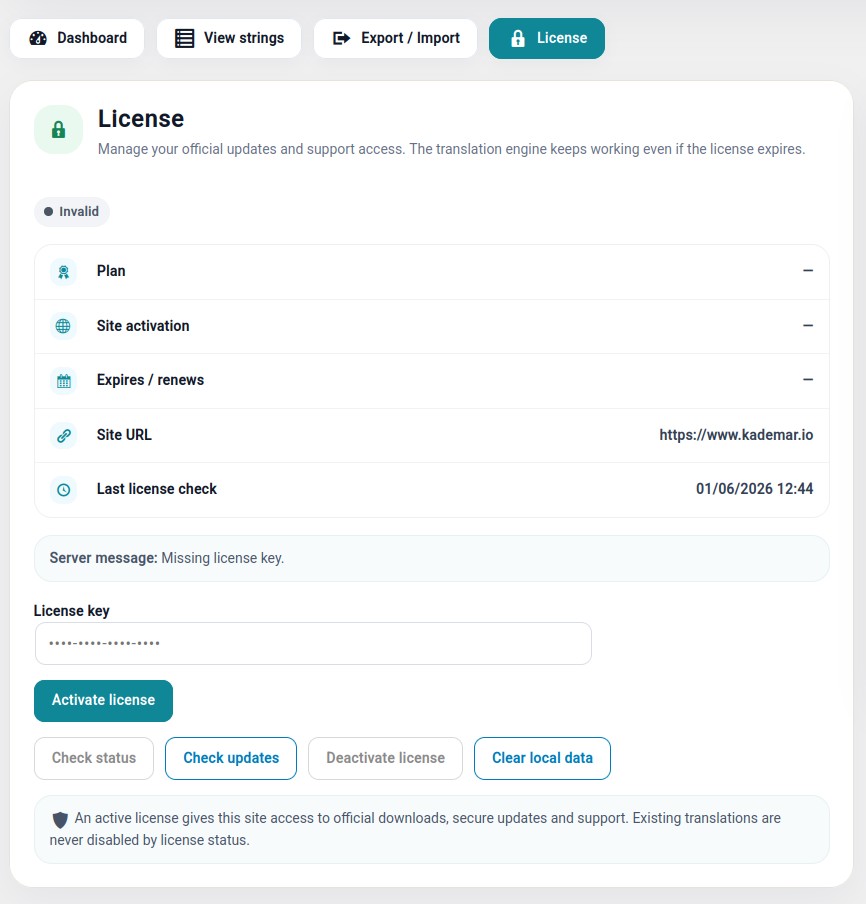
Open the license section, enter your key, and click the activation button.
What an active license means
Having an active license allows you to access official updates and product support.
The license should not be understood as a switch that breaks the website. The goal is to maintain the product, provide support, and deliver improvements safely.
What happens if the license expires
If the license expires, the plugin should keep working on the website where it is already installed.
Existing translations do not disappear, the frontend is not blocked, and the website should not stop showing translated content for that reason.
What normally becomes unavailable is official updates and active support until the license is renewed.
Common activation errors
License written with extra spaces.
License copied partially.
Outgoing connection blocked by the hosting provider.
Domain already activated at the limit of the purchased plan.
Plugin installed on a test website without reviewing the plan’s activation policy.
Recommendation
If the license does not activate, first check that the key is complete and that the website can connect to external services. If the problem continues, contact support and include the domain, the exact message, and a screenshot of the license screen.